여러개의 앱을 관리하다보니 자연스럽게 인증서, 프로비저닝 만료일 관리 지옥에 빠져버렸다.
으아악~ 도망쳐~
어느정도 이해가 되었다고 생각했는데,
여전히 자동관리가 정확히 어떻게 이루어지는지 잘 모르겠다.
오늘도 삽질을 해보자고~!
(여기서는 개발(Development)이 아닌 배포(Distribution) 인증서와 프로비저닝 프로파일의 자동관리에 대해서 다룹니다.)
수동관리
말 그대로 인증서와 프로비저닝을 사용자가 직접 지정하는 것을 말한다.
과정이 자동관리에 비해 복잡하지만,
각 앱에 대한 인증서와 프로비저닝을 직관적으로 확인할 수 있다는 장점이 있다.

개발 인증서와 프로비저닝을 수동관리하기 위해서는
Signing & Capabilities에서 Automatically manage signing 체크를 해제한다.
그 후 프로비저닝 프로파일을 선택해주면 된다.
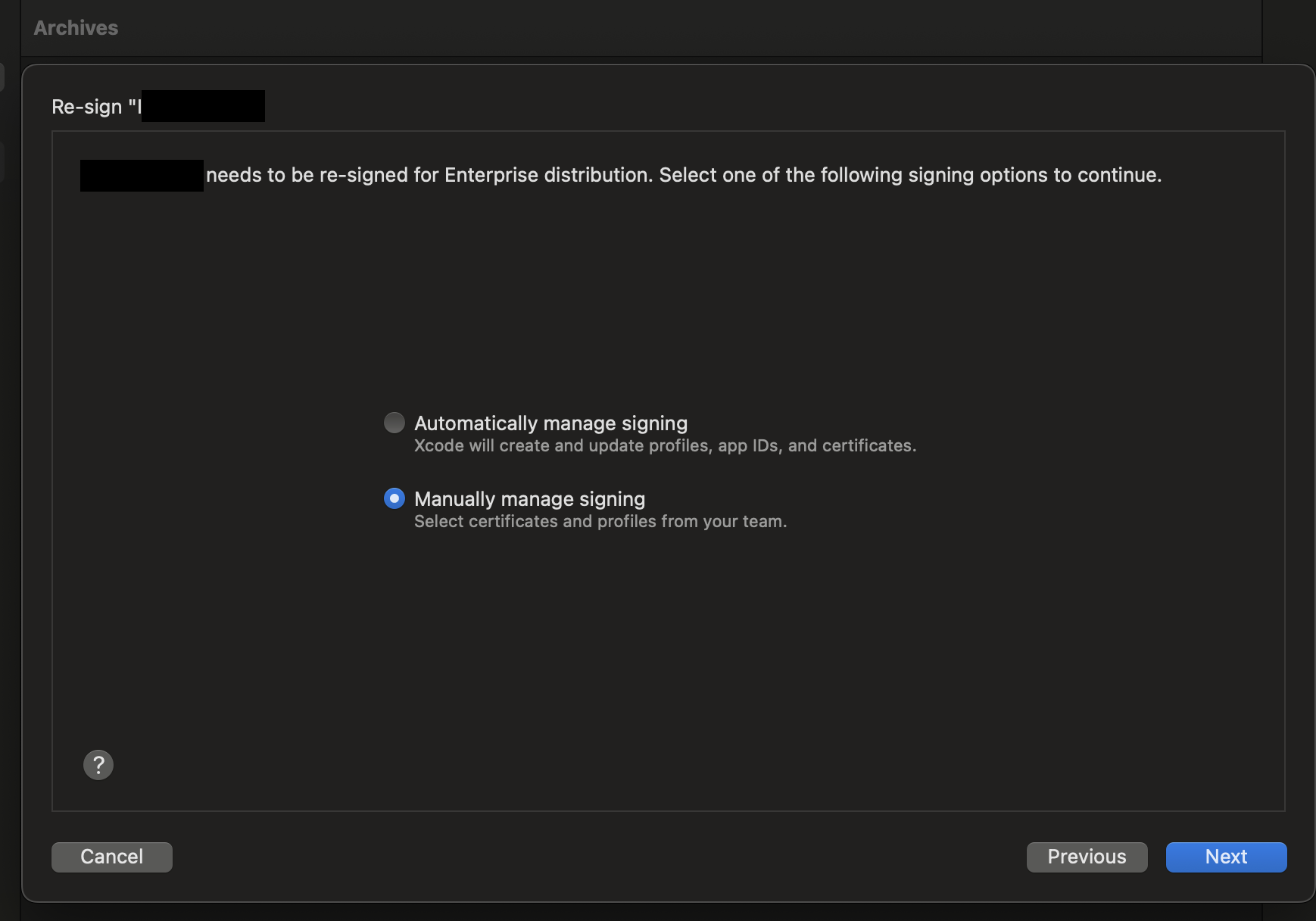
배포 프로비저닝 수동관리는
아카이브시 관리 옵션을 선택할 때 Manually manage signing을 선택하면 된다.
수동관리는 자동관리에 비해 내용이 쉽다.
CSR을 생성하면 개인키가 키체인에 저장되는데,
이 CSR을 사용하여 인증서를 생성하게 된다.
위에서 저장된 개인키를 사용하여 서명을 진행하고,
이후 서명을 검증할 때 배포 인증서의 공개키 + 로컬 개인키를 사용하여 검증하게 된다!
서명 : 개인키로 암호화
검증 : 공개키로 복호화
자동관리
배포 옵션(혹은 Xcode Signing & Capabilities)에서 Automatically manage signing을 선택하면 로컬 PC에서 별도 인증서의 설정이 없어도 서명이 가능하다.
클라우드 서명(Cloud Signing)은 인증서와 비밀키가 클라우드에 저장되고, 그 곳에서 서명하는 것을 말한다.
클라우드에서 저장 및 서명을 진행하기 때문에 인증서를 로컬에 저장할 필요가 없는 것이다.
https://developer.apple.com/videos/play/wwdc2021/10204/ (WWDC 2021 세션)
"In Xcode 13, when using automatic signing, no certificate setup is required. Certificates and private keys can now be securely stored in the cloud, where the signing operation now takes place. This means that when using automatic signing, I don't have to set up certificates at all. This new style of signing is supported by every distribution method in Xcode, such as App Store uploads, Developer ID, and Enterprise distribution."
인증서 만료 90일 전에 서명 요청을 하면 새로운 클라우드 인증서가 자동으로 생성된다.
또한 인증서 만료 기간까지 절반 미만으로 남아있을 경우, 수동 인증서 교체가 가능하다고 한다.
흠... 그렇다면 프로비저닝을 새로 추가하거나 업데이트 하는 기준은 뭐지?
https://developer.apple.com/help/account/provisioning-profiles/edit-download-or-delete-profiles/
Automatic signing lets you quickly provision your apps for development and distribution using the latest entitlements, registered devices, and certificate configurations associated with your bundle ID. In unexpected situations, there may be a system issue or a configuration change that may require you to update your provisioning profile. By default, Xcode will only request a new provisioning profile when it can’t find one locally that satisfies the known requirements.
프로비저닝 프로파일 경로
Xcode 16 이전 : ~/Library/MobileDevice/Provisioning Profiles
Xcode 16 이상 : ~/Library/Developer/Xcode/UserData/Provisioning Profiles
위의 로컬 경로에 프로비저닝 프로파일을 찾을 수 없는 경우에 재생성 된다고 한다.
재생성이 필요할 경우
1. 위의 디렉토리에 접근하여 기존 프로비저닝 프로파일을 삭제 (필요시 백업 먼저!)
2. Xcode에서 아카이브로 다시 빌드
이 순서로 진행하면 된다고 한다.
와우! 로컬에 있는 프로비저닝 삭제 후 새로 아카이브 하면 오늘 기준으로 갱신이 되는군.
https://developer.apple.com/help/account/provisioning-profiles/edit-download-or-delete-profiles/
Note: Xcode-managed development provisioning profiles and distribution provisioning profiles don’t appear in your developer account.
일단 자동관리될 경우 개발자 페이지 Certificates, Identifiers & Profiles의 Profiles에서 자동 생성된 프로비저닝은 볼 수 없다. (로컬에 자동 저장된 것으로 확인해야 한다.)
인증서의 경우에는 확인이 가능하다.
이 때, Type이 Distribution이면 직접 생성한 배포 인증서이며, Distribution Managed인 것은 자동관리로 생성된 것이다.
아! 또 문제! 왜 자꾸 직접 생성한 인증서를 사용하는가!
분명 아카이브할 때 자동관리 옵션을 선택하고 빌드했는데,
배포 프로비저닝 프로파일에 자꾸 Distribution Managed(자동 생성)가 아닌 Distribution(수동 생성)인 인증서를 사용하고 있다.
자동관리이면 무조건 자동으로 생성된 인증서를 사용하는 줄 알았는데, 그건 또 아닌가보다.
* 여기부터는 개인적인 생각으로, 공식적인 내용이 아닐 수 있습니다.
일단 내가 생각할 때 원인일 가능성이 높은 것은 키체인 접근이다.
왜냐면... 자꾸 사용된 배포 인증서가 키체인 접근에 저장되어 있기 때문...
아카이브할 때 자동관리를 선택하면 우선 키체인 접근에 유효한 인증서가 있는지 확인하고,
없으면 클라우드에서 인증서를 생성하여 사용하는 것 같다. (클라우드에 유효한 인증서가 있다면 그걸 사용할 수도?)
여기서 "유효한"이란... 자동으로 생성된 인증서를 말한다.
왜냐면 서명을 하려면 개인키가 필요한데, 수동으로 생성된 인증서의 비밀키는 로컬(키체인 접근)에만 존재하고 클라우드에는 존재하지 않는다.
하지만 자동 생성된 인증서의 개인키는 클라우드에 있으므로 아마 그걸 사용할 것이라는 추측이다.
(애초에 수동 생성된 인증서가 클라우드에 있는지도 잘 모르겠다.)
자동 관리로 배포할 때:
- 키체인에 유효한 Distribution 인증서 있음?
- YES → 로컬 서명 (해당 인증서 사용)
- NO → 아래로 진행
- 클라우드에 유효한 cloud-managed 인증서 있음?
- YES → 클라우드 서명 (기존 인증서 재사용)
- NO → 클라우드 서명 (새 인증서 자동 생성)
는 찾아보니 공식문서에 있는 내용들이다. ㅋ...
https://developer.apple.com/videos/play/wwdc2021/10204/?time=169
The first new addition in Xcode 13 is that you can create an app record directly in Xcode prior to uploading. Next, Xcode can manage your app's build number for you during the distribution process. And finally, with cloud signing, certificates and private keys will be stored in the cloud, meaning you will no longer need to manually set them up locally when using automatic signing. Let's take a look at how this all works by uploading the Baker app to App Store Connect from Xcode. I have the Baker project open, ready to be uploaded. The first thing I need is a build of the Baker app that can be processed for distribution. To perform this type of build, I will first select the Any iOS Device run destination in the toolbar, as I need to ensure Baker can be ran on any supported iOS device.
https://developer.apple.com/help/account/certificates/cloud-managed-certificates/
Xcode 13 or later will cloud sign any apps or software for distribution if you’re using the Xcode Organizer archive and distribution workflow, and a local signing certificate is not found. You can configure Xcode to locally sign software by adding an active Apple Distribution certificate to your keychain before signing for distribution or by using the manual signing processes.
음...
키체인에 있는 인증서를 삭제하고 테스트를 해보면 되겠지?
중요한 점은 개인키가 포함되어 있기 때문에 안전하게 백업을 해야한다는 것이다. (해당 인증서 우클릭 후 내보내기를 하자.)
는 두려우니까 나중에 테스트를 해보고 업데이트를 하도록 하겠다 ㅠㅠ
*잘못된 정보가 있을 경우 피드백 부탁드립니다 ( _ _ )
'iOS' 카테고리의 다른 글
| [iOS] 앱 실행 프로세스 (feat. 엔터프라이즈 프로비저닝 프로파일) (1) | 2025.09.22 |
|---|---|
| [iOS] 인증서 생성하기 (1) | 2025.09.16 |
| [iOS] CSR(Certificate Signing Request) 생성하기 (0) | 2025.09.12 |
| [iOS] embedded.mobileprovision (1) | 2025.08.29 |
| [iOS] Intune SDK 적용하기 - 네이티브 (6) | 2025.08.08 |